Everything the room used to need.
Genba Studio is one application with a control room's worth of surfaces in it. This is the whole list, grouped the way you would actually use it during a show.
Run the show
Rundown execution
Build a show as segments and beats, then advance through them live. Ninety-eight action types fire graphics, clips, scenes, layouts, audio, guests and timing — and the next beat is prepared before you call it.
The beat editor
Every beat opens as tabs, not a wall of forms: graphics, infobox, audio, mics, actions. Pick media from a library-wide picker, drag beats to reorder, and edit a beat while it is on air.
Layouts and transitions
Fullscreen, two-box, camera grids — press a tile to fire it, and one mode decides whether fires snap or animate. On-brand animated stingers mask the cut between segments.
Stream Deck, natively
Genba drives your decks over USB itself — no other software running. Four surfaces: the media browser, the layout grid, audio and strap, and a clip transport. Key layouts are authored in the app.
Put it on screen
The headline strap
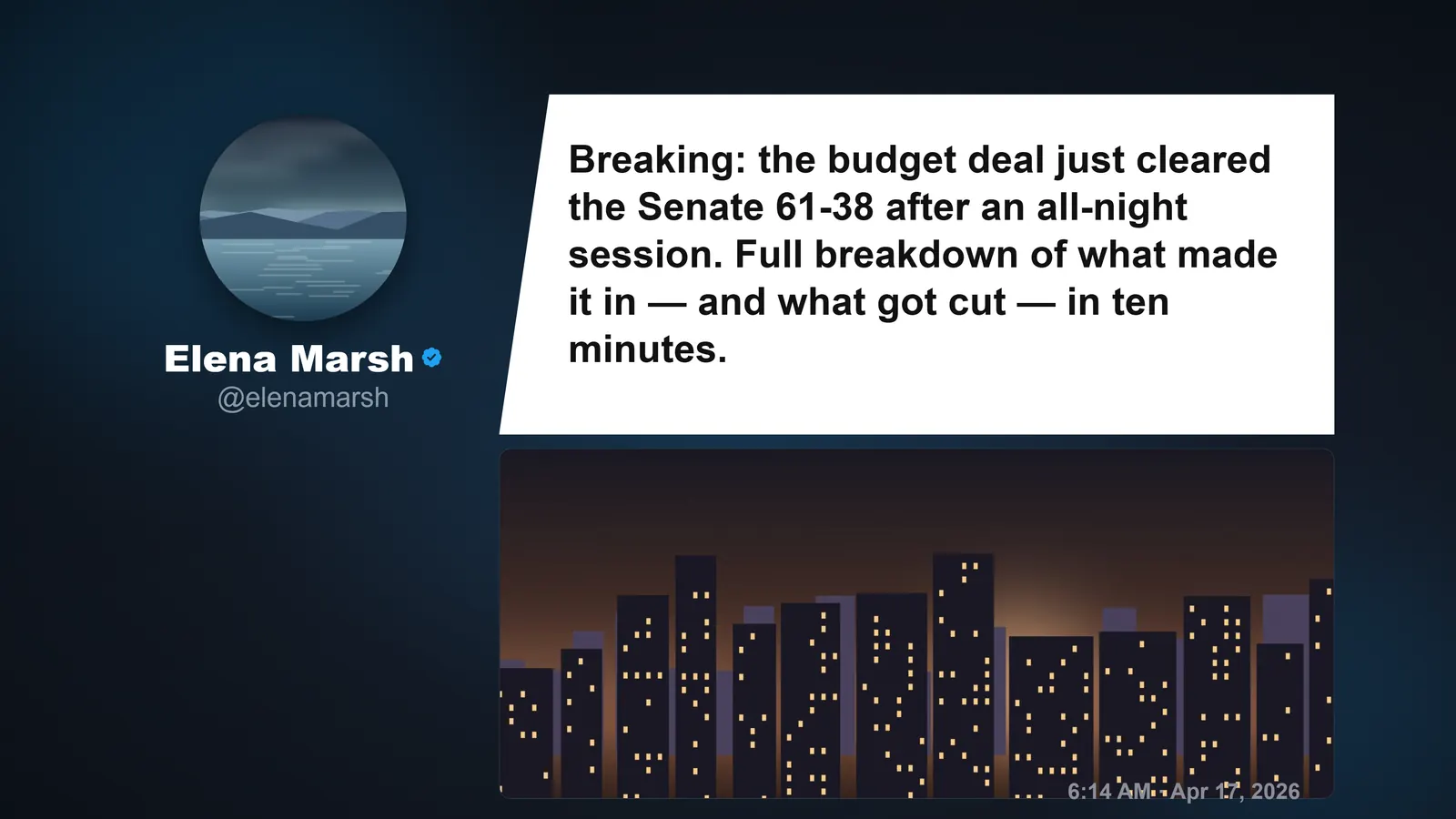
A ten-module network lockup across the lower third: logo, kicker, headline, guest credit, ticker lane and a media frame. Modes, presets and sponsor slots, all fireable from a beat or a key. Lower thirds and a multi-source ticker run alongside it.
Cards on air
Quotes, tweets, images, slideshows and full article displays as full-screen graphics — composed in the app or pulled from the library, shown now or queued for later. Articles scroll with pull-quote overlays; images carry a two-line credit bug.
Infographics and maps
Fourteen chart types built from typed-in data — bars, lines, donuts, scoreboards, choropleths. Maps drill from world to country to county with pins, shading, story layers and authored camera moves you fly between on air.
Themes and brand
A theme is the whole brand skin: logo, accent, typefaces, backdrop and the look of every overlay. Edit it in one workspace with a live preview, switch themes between shows, export a theme and hand it to another machine.
Media and sound
The clip library
Download from a URL, trim to the frame with timecode, and every clip is transcoded to one broadcast-safe standard on the way in — so nothing surprises you at 7pm. Credits and attribution ride with the clip onto the screen.
Playout and live feeds
Thirty playout decks with in and out points, loop and end behaviour, and swaps with no blank frame between them. Live HLS, SRT and RTMP sources sit in the same library and fire the same way.
Audio, two layers
Mic mutes live on the HUD where your hand already is; SFX and music buses live on their own page. Music and clips duck under anyone who talks, each microphone has a real voice chain, and one key is PANIC.
Go live
Remote guests
A green room with a director console: book guests, route each one into the scene they belong in, put them on air from a beat, and send them the program feed so they can see what they are on. Their audio is separate from your broadcast mix, on purpose.
Multi-destination output
One encode, fanned out to as many RTMP or SRT destinations as you like, each with its own start, stop and test. Add and start a destination mid-show. Keys stay on the machine and never enter an export or a sync.
Replay and transcripts
Record the show with per-camera isolated tracks, then re-run it as if it were live — same rundown, same beats, tape instead of cameras. Word-level, speaker-labelled transcripts are searchable across every episode you have made.
Also built in
Fleet and seats
Several machines, one operation: a laptop builds shows and pilots the studio rig, and every box tells you how it is doing. What a seat unlocks is the fleet; your local rig is never gated by it.
Your data, mapped
One page says where every piece of your work lives: what follows your account to another machine, what stays on this one, what can be rebuilt, and what is secret and never leaves.
Pre-flight
A go/no-go checklist before you open the mics: is every clip ready, is the engine healthy, is there disk. It shows you the evidence, and one sentence about what to do when a row is not green.
Generate (optional)
Turn a typed prompt into a draft infographic, lower third or slideshow — on your own AI account, applied only when you click. Everything else in Genba Studio works without it.
Built on OBS Studio, on purpose.
OBS Studio is the render engine underneath, and that is a feature. Your scenes are real scenes, your plugins still work, your capture cards behave the way they already do, and nothing about your show is locked inside a service you cannot open. Genba Studio installs it, launches it, connects to it and drives it — and then gets out of the way, so the only window you look at is the one with the rundown in it.
Get the alphaOBS Studio is a trademark of the OBS Project. Genba Studio is an independent product, not affiliated with or endorsed by the OBS Project.